



Smartlink Sub_Source. How to create and use smartlinks in Trafee panel
When you create a Smartlink, you have what is known as a TRACKING PARAMETER SUBSOURCE. This is very important in CPA marketing and has many advantages. The Subsource parameter not only helps optimize your current work, but also lets you add clarifying information to identify specific traffic sources.
You can track this in reports and postbacks. In addition, when using the Subsource parameter, you can also receive a personal bump from the advertiser on their offer.
Another vital benefit of the Subsource parameter is that it helps prevent fraud, a constant risk in CPA marketing, especially when you’re unsure about your sources or employees. The system will limit all untrusted sources. As a result, the system will block untrusted sources, but the account will remain active.
Now, let’s move on to creating Subsources for your CPA marketing campaigns! You can add the parameter Subsource to existing or newly created smartlinks and direct campaigns.
1. Open Tab Smartlinks or Tab Offers, click on the smartlinks/direct offers to which you wish to add a parameter Subsource
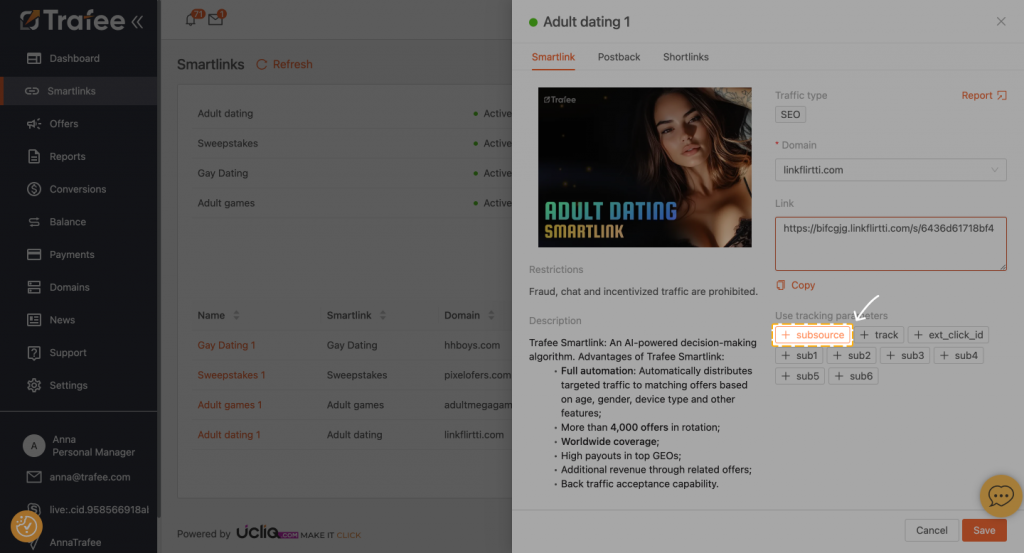
2. Now add the name of the subsource
It can be your employees’ names or your sources’ names. The Subsource will then appear in the field Link. Copy it.
If you are adding the parameter Subsource onto an existing smartlink or direct campaigns you don’t need to Save changes (you don’t need to click on the button Save), instead copy the link with new parameter Subsource.
Then, in this form (with the additional parameter Subsource), place a link on your sources or give it to employees.
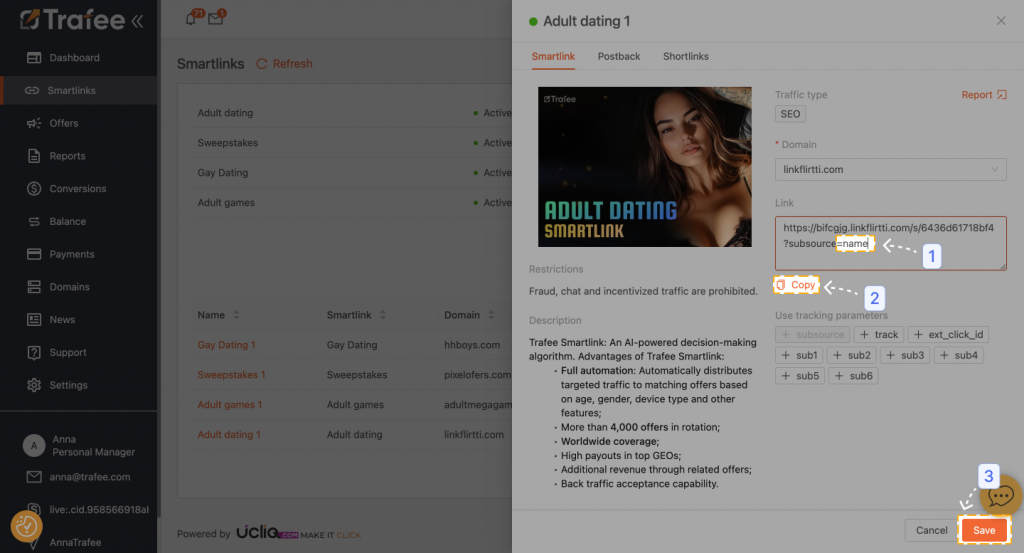
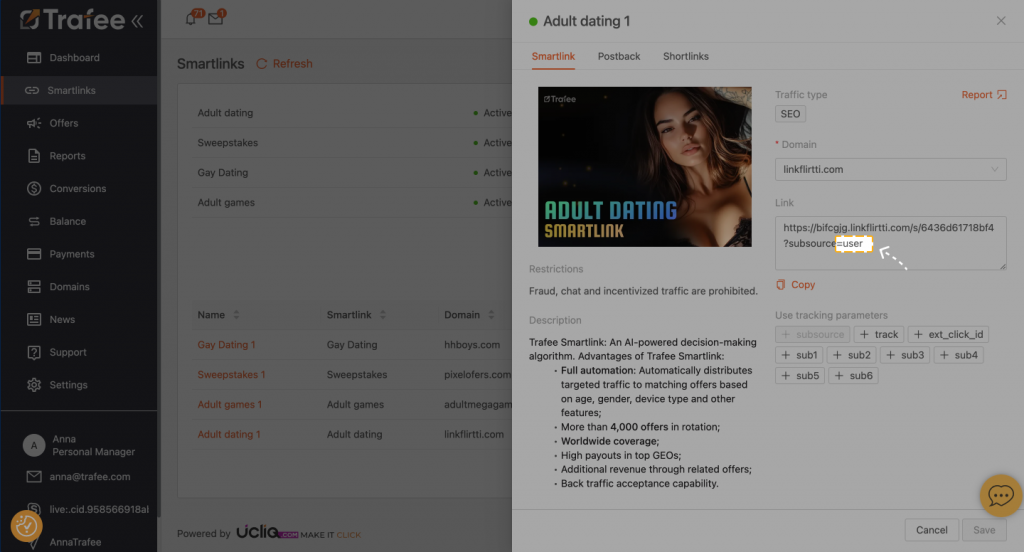
3. Use the button “Add source” to add an unlimited number of Subsources
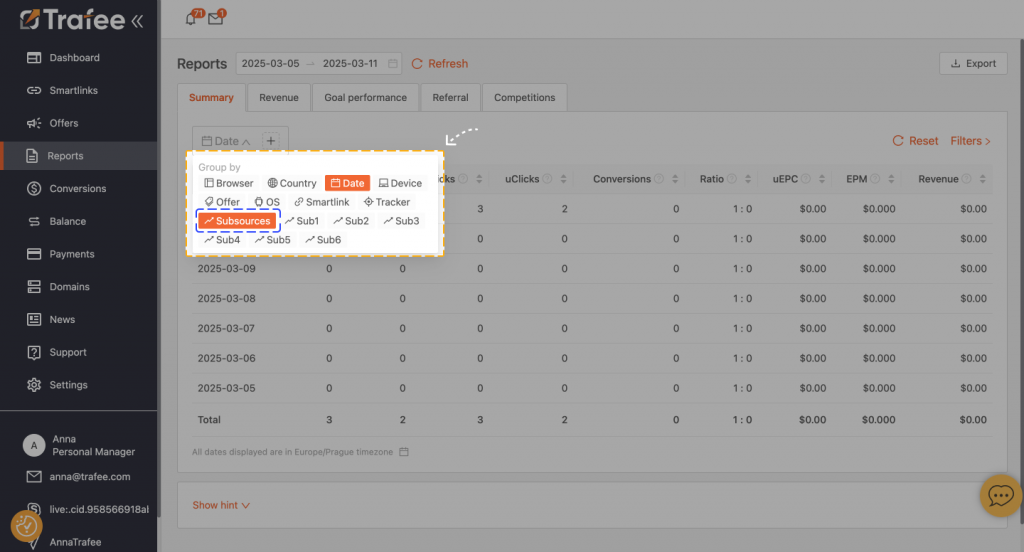
4. Track the CPA marketing result for each Subsource in the report using additional filters in statistics
Still here? We love the persistence!
That means you’re ready to test things out. You’ve got the persistence! Let’s add a smartlink and clear stats to the mix and start pushing traffic.
- Fast, reliable and user-friendly platform
- The best offers from direct advertisers
- Multiple verticals
- Competitive payouts
- Smartlink technology
- Your own account manager from day one